
Looking for a way to learn and/or read kanji? Use your iPhone (or iPad) to draw kanji and find its meaning.
As there are literally thousands of kanji, paper dictionaries and most iPhone/iPad Japanese dictionaries on their own are almost useless, as it can take a long time to look for just one kanji. I have discovered a method of translating kanji which is free and very reliable.
I have basic conversational Japanese skills, so I can speak and listen OK. I can read hiragana and katakana fine. The most frustrating thing about living here is the not being able to understand kanji.
Having now lived in Japan for a few months, I have tried many methods to understand kanji on the spot. Here is a free method to understand kanji using your iPhone.
How to use your iPhone to draw and translate Japanese kanji
Update (January 3, 2013): This article used to refer to the iPhone app Kotoba!, which has been renamed to imiwa? (Japanese dictionary). “imiwa?” in Japanese translates to “what is the meaning?” in English.
First download the iPhone/iPad app imiwa? (Japanese dictionary), it is the best free Japanese dictionary I have used. There is a separate app for iPhone and iPad.

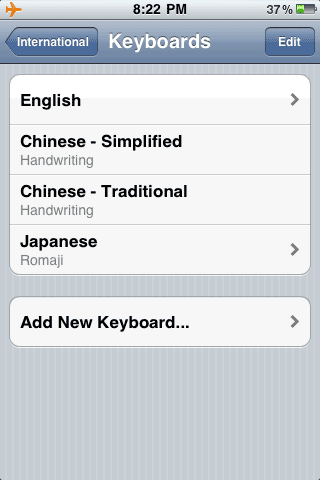
Now set you need to setup your iPhone so you can draw kanji. Go to Settings > General > Keyboard > Add New Keyboard and select ‘Chinese – Simplified (Handwriting)’.
Update (August 12, 2012): You might also want to add Japanese – Romaji. It enables a keyboard allowing you to enter romaji (English characters for Japanese) and select the hiragana/katakana/kanji versions, e.g. watashi = わたし = 私 – similar to typing Japanese on a computer keyboard.
Also, thanks to ER’s comment, you should also add the Chinese – Traditional Handwriting keyboard, to make sure you cover as many kanji as possible.
Launch the imiwa? app, go to the Dictionary section and tap inside the search box.
The normal keyboard will appear on-screen, however there is a new button which looks like a globe, tap this. This new globe icon will be on every keyboard view – e.g. when sending text messages or browsing the net – so can also be used to type Japanese into your iPhone. Very handy huh!?
You are now in a new screen which enables you to draw with your finger. As you draw new lines, the closest match appears on the right side of the screen. At times it can be a little tricky to find the right match, and you may need to clear what you have drawn and try again, most of the time it comes up with the correct kanji. If you are not finding the correct one, try changing the stroke order.
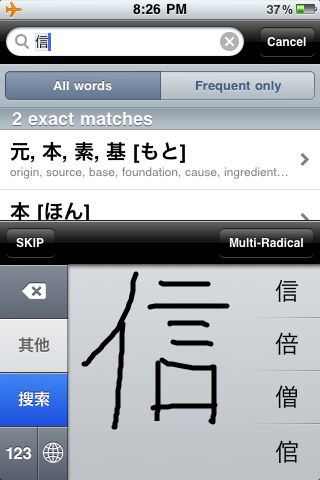
You can search for just one kanji, or input multiples that may make a word. Once you are done, tap the globe again to return to the English keyboard where you can press the search button.
It is easiest to translate kanji when you are seeing single words, for example a sign. It can be a little more difficult to translate kanji in a written document, as Japanese doesn’t use spaces between words, so it is difficult to know when to stop and search.
Try it for yourself, it isn’t perfect, but compared to some apps (which cost $5 of more) that take a photo and try to interpret the kanji, this is much more reliable with a higher success rate.
Note: If you are travelling to Japan from another country, your iPhone may not be able to make calls or connect to the internet in Japan. If it does, you will probably pay a very hefty price for international roaming. That being said, take your iPhone with you for your visit to Japan and set Airplane Mode to ON before you depart your country.





Looks like a great new way to find and look up kanji. Much better than the way I started with kanji dictionaries that took forever to find anything.
I think the Kotoba app is great for a free app and covers pretty much any word or Kanji you would care to look up, but for someone serious about Japanese learning the Wisdom dictionary app is much more useful in the long-term.
It has better definitions, more useful examples and it lets you search not just by word but by idiom usage and examples – both very useful things.
Downside? It costs $30. I use it every day though, so to me it’s worth it.
Thanks for the mini-review Dan. When it comes to learning Japanese, I use iKnow.jp as it syncs the web and iPhone apps together, costs about JPY800 per month, less for longer subscriptions.
Oh yeah, I used to use the iKnow web app back when it was free and called smart.fm. Pretty handy for learning vocab!
The new iKnow app has listening and speaking exercise too, so it is pretty good for learning sentences too. Still, it is mainly a vocab builder… a great one at that.
Thanks for the work around. You might want to add the Chinese – Traditional Handwriting keyboard too since the Japanese do use some traditional characters. FYI, it’s rare but there are a few Kanji unique to Japanese.
Thanks for the tip ER!
Not “a few”–there are many kanji unique to Japanese, including some of the most common ones, like the “ki” in “genki.” Many others are different from their traditional or simplified Chinese equivalents, so the Chinese input won’t work for them–the languages have had more than a millennium of separate evolution. Plus the Chinese handwriting won’t let you input kana, meaning all non-suru verbs are off the table (no one would ever want to look up a verb, would they?). If you think Chinese handwriting is a reliable way to enter Japanese, you may have tested out a few words but you haven’t tried to rely on it. You’ll have better luck using a program that includes its own true Japanese handwriting input, like NowPro’s Handwriting Notes or 7Notes mini J or one of the expensive dictionary apps, and copying and pasting from that to the app you want to enter the word in. Inconvenient, but ultimately less frustrating (imagine: you write into the Chinese method and can’t pull up the kanji you want–you can’t be sure if it’s just not in there or if you drew it wrong, so you write it in over and over until you give up).
Sorry for the double post–hadn’t realized I’d replied a couple of years ago or seen your reply to it. Mod, please delete the post above if you like. After reading your reply below, I was able to find kanji I couldn’t before, but it took me several minutes to find them (e.g., ? and ?). When I tried those characters wrong (wrong stroke order for Japanese, probably by luck closer to the Chinese stroke order)I had much better success. So to use the Chinese HW one often has to try a couple of variations of stroke order (when the proper Japanese doesn’t work), switch back and forth between traditional and simplified Chinese HW, and then switch to a Japanese keyboard to enter any kana that might be part of a word (verb endings, etc.). Cut and paste from a program with a HW system designed for Japanese still seems like the best bet.
Kotoba! Seems to have removed the draw and recognize function to finding a kanji reading. Unless I am missing something I am not seeing the globe icon that is supposed to make such entry possible
Hi Bryan. It’s not the app that has the functionality to draw in the kanji – it’s the iPhone software itself.
You need to follow the steps to activate the additional keyboard in the settings – this is in this post.
I’m on the latest version of Kotoba and it’s definitely there.
I just put Kotoba on my ipod touch last week and found this page today. I just enabled the character keyboard under the ipod’s settings/general/keyboard/international keyboard. I added both Chinese simplified handwriting and Chinese tradtitional handwriting. I’m going to need to practice since it’s not finding my characters with my chicken scratch, but I’ll get there! Thanks for posting this useful feature!
The iPad app would be great for writing in the kanji, more room than the iPhone! After playing with it over the months I’ve noticed that the correct stroke order helps in identifying the characters also. You don’t have to know the stroke order of every single character but you do need to understand the generic rule: top to bottom; left to right.
You do realize that quite a few kanji, even many common ones like 気, don’t exist at all or aren’t written the same way in either simplified or traditional Chinese? Since the Japanese adopted kanji 1500 years ago, they’ve had plenty of time to invent some of their own, and the characters have had plenty of time to evolve apart. See the wikipedia page below for details. Relying on the built-in Chinese handwriting recognition is a cross-your-fingers-and-hope-it-works emergency option, not a practical solution for people who need to look up words they see written in Japanese on a regular basis. It’s OK for someone who doesn’t need to read Japanese very often, but for someone who does, an app that includes its own handwriting recognition would be a much better recommendation.
Here’s the wikipedia page: http://en.wikipedia.org/wiki/Chinese_characters#Comparisons_of_traditional_Chinese.2C_simplified_Chinese.2C_and_Japanese
I’m not sure we’re talking about the same thing here. See the image below, I’m able draw the kanji ? into my iPhone using the method stated above and it is recognised fine.
Keeping things free, I’m a person who looks up kanji everyday and find this a very practical solution. Coupled with the Kotoba! app, on the rare occasions I can’t find a kanji using handwriting, it’s easy to look it up in the multiple kanji libraries on the app.
Am I missing something? I don’t seem to be able to find this app and I was really looking forward to getting it to help me with a Japanese game : Did it change names?
Hi Ilene – the Kotoba app seems to have been recently removed from the app store. I’ll find a good replacement and update the article soon. You could still install the new international keyboards and use online dictionaries to translate.
Kotoba! has been renamed to 「imiwa?」. It is still written by the same developer, Pierre-Phillipe di Costanzo. It can be found in iTunes at: https://itunes.apple.com/app/imiwa-japanese-dictionary/id288499125?mt=8
The developer’s home page for the app is at: http://imiwa.pierrephi.net/
I used Kotoba! back in 2009 for Japan travel and it was fantastic.
Yes I was also wondering about that it sucked that it was removed from the the app store this is one of the best ever kanji apps ive ever ever used.!! i wanted to get it on my other ipod but saw it wasnt on the app store anymore i wonder why its gone but it was still on my itune account it snyc up to my computer some how and i was able to transfer it best app ive learn so much from it thank you
Thank you so much! I’ve been trying to find a kanji recognition application – where I can write it as well. It helps me out a lot.
This is a great tip! The Chinese keyboard even recognizes kanji with a wrong stroke order.
Hi,
Great succinct article, I really enjoyed it! Just thought I’d add that you don’t need to change keyboards hit the search button after you draw. The “Blue” button is the search button in the Chinese keyboard. Also the grey button right above it is the “Other” button. Once you start writing you can click it to cycle through more than the initial 4 guesses of your kanji on the far right-hand side of the keyboard. I love the “Other” button as it saves me the time of rewriting the kanji if I’m not quite close enough to what it’s looking for.
Thanks for the tip mate!